
| Name | Description |
|---|---|
| Edit Course details. |
| Preview the course’s intro video exactly as learners will see it. |
| Make your course live for learners. Remember: you need to add at least one module and lesson before publishing. |
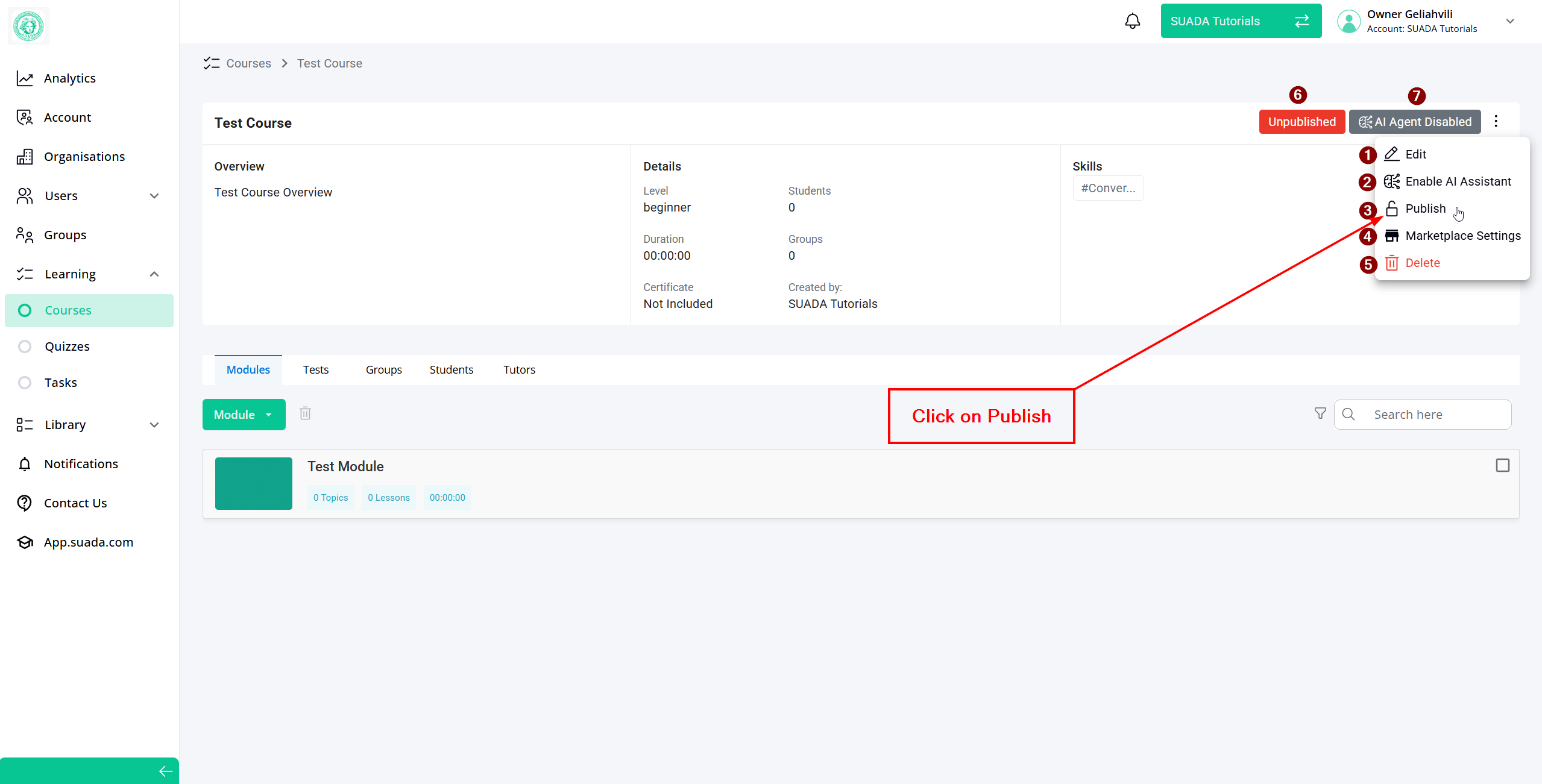
| Name | Description |
|---|---|
| Go back into the course builder to add or adjust modules, lessons, or details before publishing. |
| Turn on the AI assistant to give learners in-course support, answering questions and guiding them through content. |
| Make your course live and accessible to learners. Remember: you need at least one module and lesson added first. |
| Choose how your course appears in the Suada marketplace — set price, visibility, and discoverability options. |
| Remove the course permanently. Use this only if you’re sure you no longer need it. |
| Indication whether the Course is Published or not. |
| Indication whether the Course has AI Agent enabled or not. |
